


Manual Mode Operation
Spindle Systems have a convenient switch on the side of our enclosure which lets you switch between "Manual Mode" and "Automatic Mode". When flipped to manual (up or 1 position) you can hit the run button on the VFD's keypad and turn the dial controlling the motor just like you would a palm router.
See more: https://support.pwncnc.com/kb/article/658-phase-2-manual-mode-operation/
Spindle Kits come programmed for immediate use in "Manual Mode". This means you hit the run button and turn the dial to start your spindle motor just like you would a palm router.
See more: https://support.pwncnc.com/kb/article/655-phase-2-manual-mode-operation/
Wiring your Spindle to Avid Controller for Automatic Mode Operation
Spindle System Wiring
See more: https://support.pwncnc.com/kb/article/659-phase-3-controller-wiring-and-automatic-control/
If you have our spindle system, then it's really easy to plug everything up.
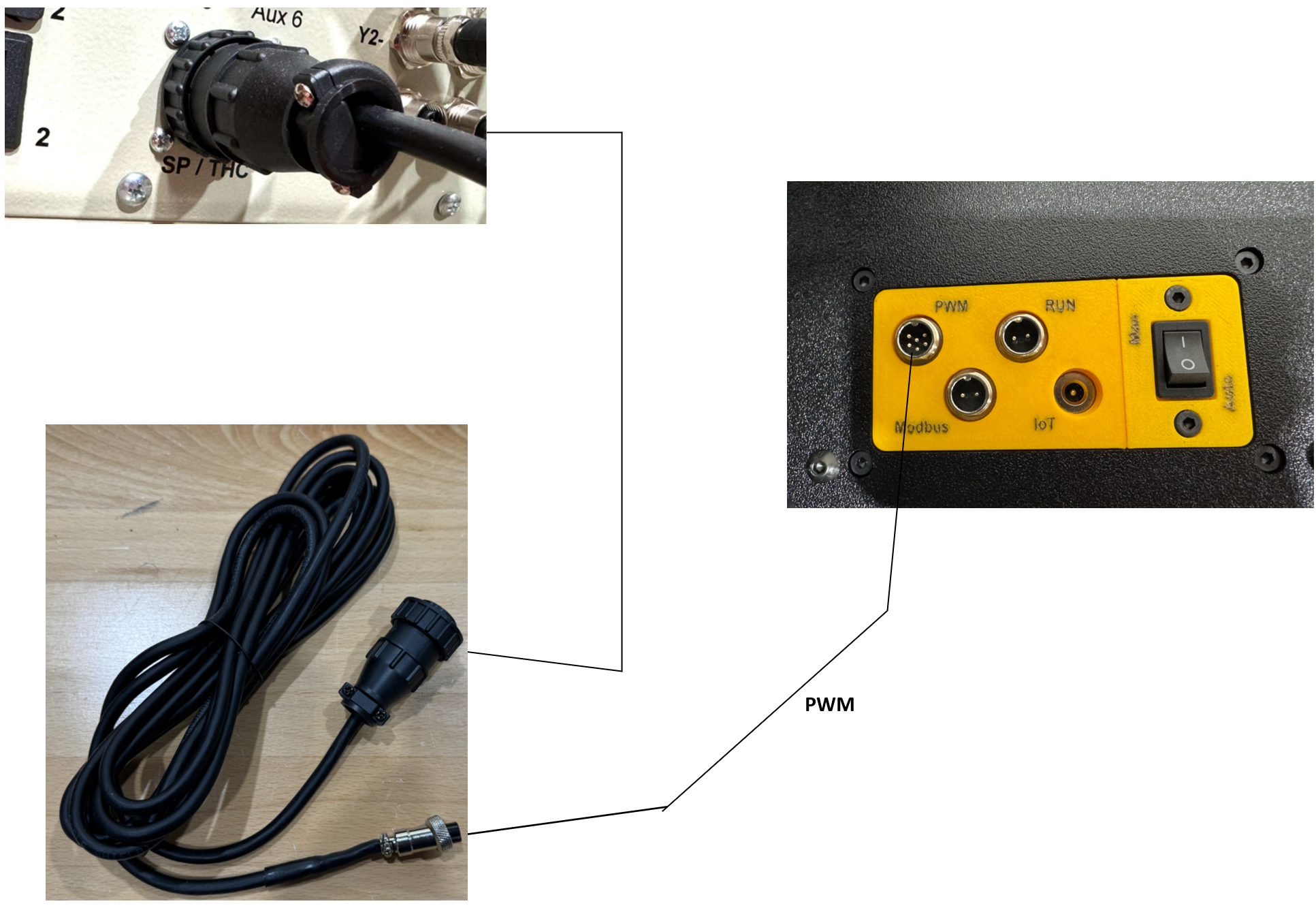
Spindle Kit Wiring
See more: https://support.pwncnc.com/kb/article/656-phase-3-controller-wiring-and-automatic-control/
If you have our spindle kit, then you'll be digging into the VFD directly to wire it up. Connect it as shown below:
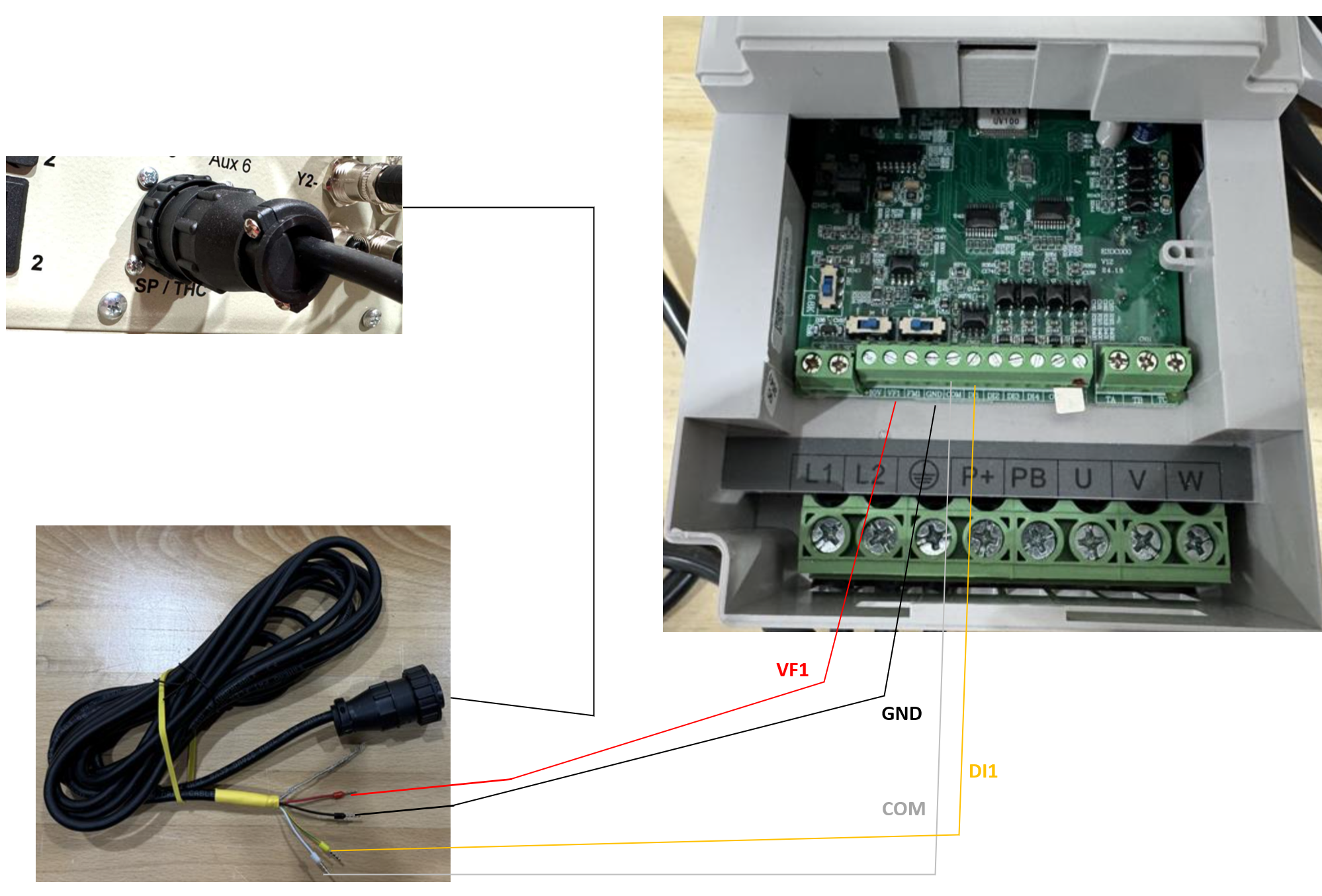
Setting up your VFD for Automatic Mode Operation
This mode is where your CNC controller controls the VFD via a simple PWM variable voltage signal. For Avid this is 0-10v representing 0-24000rpms.
Running Spindle Systems in Automatic Mode
See more: https://support.pwncnc.com/kb/article/659-phase-3-controller-wiring-and-automatic-control/
We have pre-programmed your VFD to run in automatic mode when the Manual Override switch is flipped to automatic (down or 0 position). The vfd will monitor the PWM (red wire) and GND (black wire) for how fast the controller is instructing the VFD to spin the spindle motor. You must still hit the "RUN" button on the VFD's keypad to change the vfd from standby/stopped mode (blinking keypad display) to spin/forward mode (solid keypad display).
Running Spindle Kits in Automatic Mode
See more: https://support.pwncnc.com/kb/article/656-phase-3-controller-wiring-and-automatic-control/
Our spindle kits do not come with a vfd enclosure and as such you're expected to provide that as well as properly wiring up the high-voltage electrical. If unsure, consult an electrician.
Without our specially designed enclosure, our spindle kits can only run in Manual-Mode OR Automatic-Mode, you are unable to easily switch between them without changing a few program settings within the VFD.
To reprogram your VFD from Manual-Mode operation to Automatic-Mode operation you'll need to change the following settings:
Learn how to navigate your VFD programming here: https://support.pwncnc.com/kb/article/664-how-to-program-your-vfd/
P0.0.03 = 1
P0.0.04 = 3
Your VFD will now monitor the PWM wires to know how fast it should spin the motor when in "Run Mode".
Your Avid is capable of triggering an internal relay which activates the Run/CW/Forward functionality of our VFD via the Yellow and White wires.
When your VFD switches to Run Mode the vfd will change from standby/stopped mode (blinking keypad display) to spin/forward mode (solid keypad display).
Setting up your Avid Controller for Automatic Mode Operation
We're experts in our VFD and spindles, but not experts in your particular CNC Controller. If you have specific questions, we will encourage you to seek advice and guidance from your machine provider.
We have played with Avid controllers and Mach3 before and here are a few notes we've gathered as to how to configure gSender for controlling a spindle:
Open Mach4 and ensure your machine is “disabled”. Under Configure, open the Avid CNC Mach4 Configuration. Within this screen you’ll need to configure the “Spindle Type” value to 3HP Avid CNC Spindle then hit “Save”
In Avid CNC Mach 4 Configuration under the General tab, select cutting tool: Spindle, and 3HP Avid CNC Spindle and hit save.
Under the MDI screen you can check that automatic control is working by typing m3s6000. Your spindle should spin up to 6000 RPM, and then M5 to stop.


